Create your first Telegram bot
Connect a Telegram bot to Bots.Business and make it reply to /start from the current mobile app, without writing code.
By the end of this guide, your bot will reply to /start in Telegram. You need a Telegram account and a signed-in Bots.Business account. If this is your first visit, create an account and sign in first.
Create the bot in Telegram
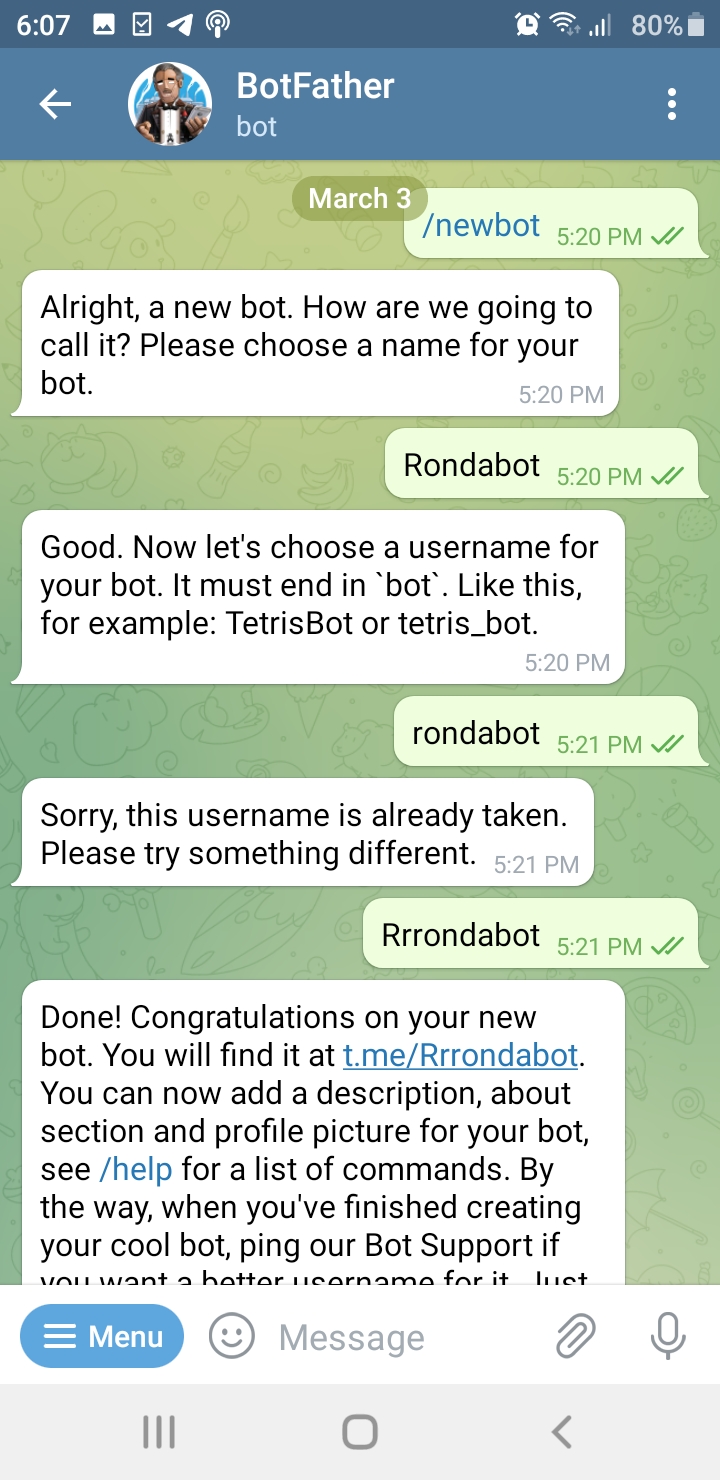
Open the official @BotFather in Telegram and tap Start if shown. Send the following messages to BotFather, not to your new bot.
Send
/newbotto begin creating a bot.When asked for a name, send a display name, such as
My first bot. This is the name people see in Telegram.When asked for a username, choose a unique one ending in
bot, such asalex_practice_2026_bot. Use 5–32 characters: Latin letters, digits or underscores, with no spaces. If BotFather says it is taken, choose another and send it again.After BotFather confirms creation, copy the complete bot token from its reply. The token has digits before a colon (
:) and a long string after it. Copy only that value, without surrounding text or spaces. The bot's@usernameandt.me/...link are not its token.

Check: you now have a bot username and its token. Keep the token ready for the Token field in the next step. The new bot will start replying after you connect it and add a command below.
These steps follow Telegram's bot creation guide.
Add it to Bots.Business
Open My bots and choose Create bot. If the list already has bots, tap +.
Enter a useful Name, such as
My first bot.Paste your token into Token and tap CREATE below the form.
Open the new bot to enter its workspace.
A bot can be saved before its token is supplied, but it needs a valid token to connect to Telegram. If you skipped the field, open Dashboard → Edit bot and add it.

Give /start an answer
Open Commands.
Tap + and choose New command.
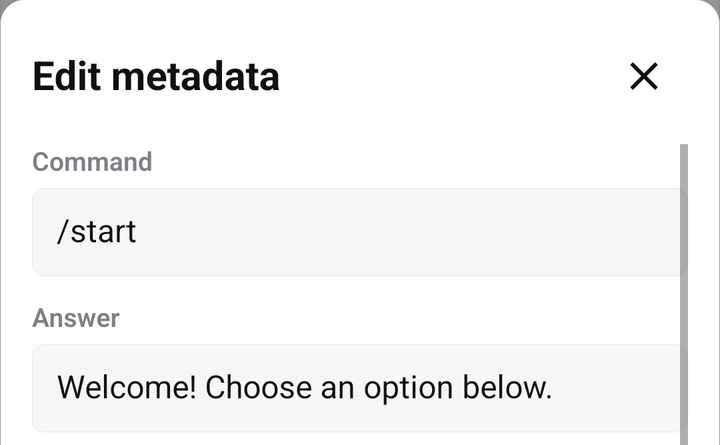
Set Command to
/start.Set Answer to
Hello! My bot is working.Leave Wait for answer off and the BJS code empty for this first example.
Tap Create in the command form. For an existing command, open ⋮ → Options, change its fields, and tap Edit. The code editor's Save button is used for code changes.
The Answer field is enough for a simple response. You do not need to install a library or write JavaScript for this step.

The screenshot shows demonstration text. For this tutorial, keep the Answer you entered in step 4.
Launch and test
Open Dashboard, tap Launch bot, and check its status. Use Open to go to the bot in Telegram. Tap Telegram's Start button or send /start yourself.
You should receive Hello! My bot is working. Saving a command alone does not send it to a Telegram chat; sending /start triggers it.

If the answer does not arrive
Check that you opened the same bot username as the token you added.
Check that the bot is running and the command was saved.
Open Errors for the bot. Start with plain Answer text to avoid formatting errors.
Check that Wait for answer is off for this example and that no group restriction is set.
If another hosting service uses the same Telegram bot, check its connection before moving the bot between services.
Use Bot does not reply for the full checklist.
Next: add a menu
Create a second command and connect it to a reply keyboard. To start programming, follow JavaScript basics for BJS beginners. If you already know JavaScript, continue with BJS execution and APIs.
Last updated
Was this helpful?