> For the complete documentation index, see [llms.txt](https://help.bots.business/llms.txt). Markdown versions of documentation pages are available by appending `.md` to page URLs; this page is available as [Markdown](https://help.bots.business/build-bot-behavior/commands.md).

# Create and edit commands

Create and edit bot commands, answers, aliases, groups, folders, and BJS in the current Bots.Business command editor.

A command defines what your bot does when it receives matching text or when another part of the bot runs that command. It can send an Answer, show a keyboard, or execute BJS.

## Create a command on your phone

1. Open your bot → **Commands**.
2. Tap **+** → **New command**.
3. Enter **Command**, such as `/help`, and **Answer**, such as `Choose a topic from the menu.`
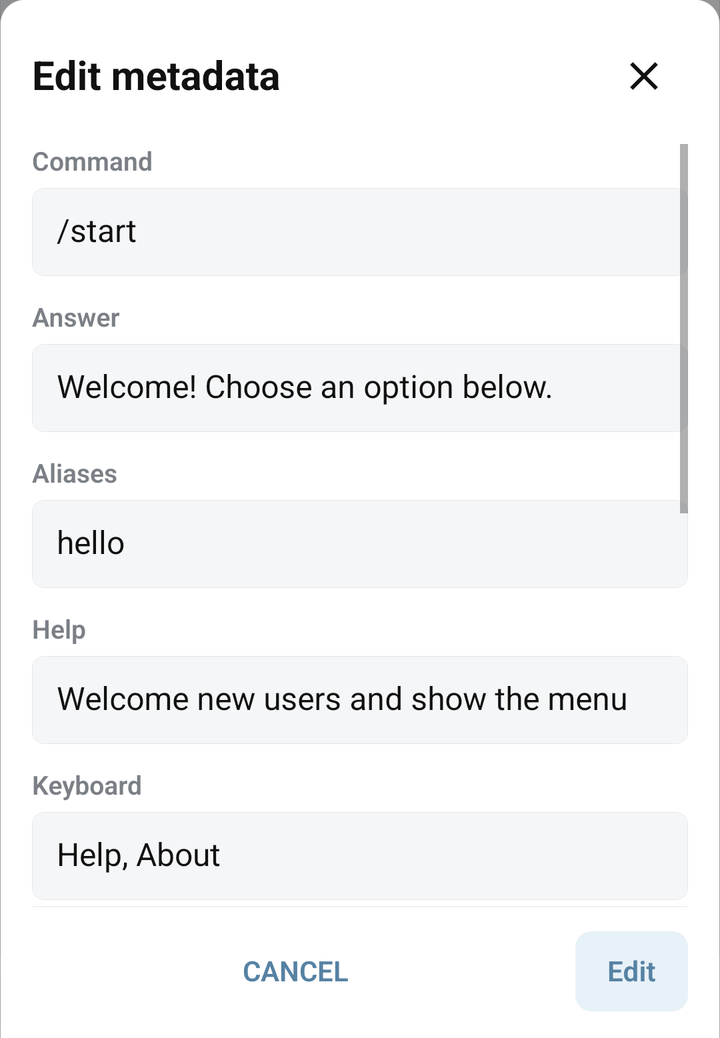
4. Tap **Create**. For an existing command, use **⋮ → Options** to open **Edit metadata**, then tap **Edit** after changing its fields.
5. Launch the bot if needed and send `/help` in Telegram.

The editor's code area contains BJS. **Save** writes the current metadata and code. If you navigate away with unsaved changes, handle the save prompt before assuming your changes are active.

<figure><img src="https://3310729168-files.gitbook.io/~/files/v0/b/gitbook-x-prod.appspot.com/o/spaces%2F-LVh0yg9olT-QWqi3AYt%2Fuploads%2Fgit-blob-4ccbc434d69d7affb7242fe77fbe57561f1b5fe2%2Fmobile-bjs-editor.png?alt=media" alt="The mobile BJS editor for /start, with its code and editor controls"><figcaption><p>The mobile BJS editor for /start, with its code and editor controls</p></figcaption></figure>

## What the fields do

| Field                          | Meaning                                                                                                                                                                                                 |
| ------------------------------ | ------------------------------------------------------------------------------------------------------------------------------------------------------------------------------------------------------- |
| **Command**                    | The command text, usually `/start`, `/help`, or a short internal name.                                                                                                                                  |
| **Answer**                     | A message sent when the command is triggered.                                                                                                                                                           |
| **Aliases**                    | Alternative names, separated by commas: `Help, /support`.                                                                                                                                               |
| **Help**                       | A description used by the bot's help behavior.                                                                                                                                                          |
| **Keyboard**                   | Reply-button labels separated by commas; `\n` starts another row.                                                                                                                                       |
| **Allowed only for group**     | Restrict execution to a named Bots.Business user group.                                                                                                                                                 |
| **Wait for answer**            | Send the prompt first and run the BJS after the user's reply.                                                                                                                                           |
| **Auto retry time in seconds** | Run BJS periodically without user/chat context. Follow the [complete Auto Retry setup](/bjs-reference/background.md#auto-retry-run-periodically), including an explicit destination and how to stop it. |
| **Select Folder**              | Organize the command in the app; a folder is not a permission group.                                                                                                                                    |

A Keyboard requires an Answer in the metadata form. An auto-retry interval requires BJS. The editor reports these combinations when you save.

<figure><img src="https://3310729168-files.gitbook.io/~/files/v0/b/gitbook-x-prod.appspot.com/o/spaces%2F-LVh0yg9olT-QWqi3AYt%2Fuploads%2Fgit-blob-8254dcdc5b4552a2b803b885941993d241cdd5dd%2Fmobile-command-fields.png?alt=media" alt="Command metadata fields with a demonstration answer, aliases, and keyboard"><figcaption><p>Command metadata fields with a demonstration answer, aliases, and keyboard</p></figcaption></figure>

<figure><img src="https://3310729168-files.gitbook.io/~/files/v0/b/gitbook-x-prod.appspot.com/o/spaces%2F-LVh0yg9olT-QWqi3AYt%2Fuploads%2Fgit-blob-dd0d4df0eda92942698b4ea330c084f64d220c0b%2Fmobile-command-advanced.png?alt=media" alt="Advanced command metadata: permission group, Wait for answer, Auto Retry and folder selection"><figcaption><p>Advanced command metadata: permission group, Wait for answer, Auto Retry and folder selection</p></figcaption></figure>

## Names, aliases, and parameters

Use consistent lowercase command names such as `/help`. Main command names are matched exactly, so `/start` and `/START` can differ. Aliases are trimmed and normalized to lowercase; they provide a convenient way to connect a button labelled `Help` to `/help`.

For a command `/product`, an incoming `/product blue` can expose `blue` as BJS `params`. Define the `/product` command, then handle the parameter in its code. Avoid conflicting command names and aliases.

The special commands `*`, `@`, `@@`, and `!` have runtime roles. Read [execution context and special commands](/bjs-reference/context.md) and [BJS errors](/bjs-reference/errors.md) before using them.

## Format a simple Answer

Answer messages use the Telegram sender's default Markdown formatting. Start with ordinary text, then add simple formatting:

{% code title="Format a simple Answer · Example 1" overflow="wrap" %}

```
*Welcome*
Choose /help to see the available commands.
[Visit our website](https://example.com)
```

{% endcode %}

Unmatched formatting characters can cause a Telegram error. A Markdown link to an image is a link; it is not a reliable replacement for sending a photo. Use a suitable [Telegram API method](/bjs-reference/telegram-api.md) when you need a photo, document, or explicit parse mode.

## Put a saved property in an Answer

An ordinary Answer can include a stored property as `<property_name>`. For example, create `/remember-color` with empty Answer, **Wait for answer** off, and this BJS:

{% code title="/remember-color" overflow="wrap" %}

```javascript
// Command: /remember-color
if (!user) { return; }
User.setProp("favorite_color", "blue");
Bot.sendMessage("Saved. Now send /my-color.");
```

{% endcode %}

Create `/my-color` with **Answer** `Your color: <favorite_color>`, empty BJS and **Wait for answer** off. Send `/remember-color`, then `/my-color`: expect `Your color: blue`.

The placeholder looks first for this user's property in this bot, then for a bot property with the same name. A missing property becomes an empty string. Use simple text or numeric values, and check how formatting characters in a value affect the final message.

This is Answer property substitution, not HTML formatting. Do not use `<b>...</b>` in an ordinary Answer to make text bold; use its Markdown syntax, or an explicit [Telegram API parse mode](/bjs-reference/telegram-api.md). SmartBot's `{placeholder}` templates have their own [rules](/libraries-and-examples/smart-bot.md).

## Restrict a command to a group

The group field refers to a Bots.Business user group, not to a Telegram group chat. Assign group membership through [User methods](/bjs-reference/user-properties.md), then put that same group name in the command's **Allowed only for group** field. A command without a group restriction is not restricted by this field.

## Find and organize commands

Use search, folder selection, and feature filters such as **Has code**, **Has keyboard**, or **Wait for answer**. If a command appears to be missing, clear search and filters before recreating it.

<figure><img src="https://3310729168-files.gitbook.io/~/files/v0/b/gitbook-x-prod.appspot.com/o/spaces%2F-LVh0yg9olT-QWqi3AYt%2Fuploads%2Fgit-blob-7b9a9c6cdf57533a4d1d15e45802ffe7d6bc06f9%2Fmobile-commands.png?alt=media" alt="Commands on Android, with demonstration commands and folder controls"><figcaption><p>Commands on Android, with demonstration commands and folder controls</p></figcaption></figure>

<details>

<summary>Create and use a folder</summary>

### Create and use a folder

1. Open **Commands → + → Folder manager**.
2. Enter **Folder name**, such as `Support`, and tap **Create**.
3. Open a command, then **⋮ → Options**.
4. Under **Select Folder**, select `Support` and save with **Edit**.
5. Return to Commands and select that folder to check its contents. **All** includes commands from every folder; **Without folder** shows unassigned commands.

To remove a folder, open Folder manager, tap its **Delete** action, and confirm the intended folder. **Deleting a folder leaves its commands in the bot** and removes their folder assignment. Deleting a command is a different action.

A folder organizes your editor; it does not restrict who can run a command. Use **Allowed only for group** for that purpose.

<figure><img src="https://3310729168-files.gitbook.io/~/files/v0/b/gitbook-x-prod.appspot.com/o/spaces%2F-LVh0yg9olT-QWqi3AYt%2Fuploads%2Fgit-blob-8e6256d2f101c4220853c21b632081add5bcc6a6%2Fmobile-folder-manager.png?alt=media" alt="Folder manager with a demonstration folder and controls to create or delete a folder"><figcaption><p>Folder manager with a demonstration folder and controls to create or delete a folder</p></figcaption></figure>

</details>

## Editor tools

Open **⋮** to find **Check** and **Format**. **Options** opens the command metadata. Close the menu to use **Save** at the bottom of the editor.

* **Check** checks syntax. It does not prove that an API method exists or that a request will succeed.
* **Format** formats the current code draft; save the result when ready.
* **Search code** opens find and replace within the current command.
* **Undo** and **Redo** work on the current editor draft.

<figure><img src="https://3310729168-files.gitbook.io/~/files/v0/b/gitbook-x-prod.appspot.com/o/spaces%2F-LVh0yg9olT-QWqi3AYt%2Fuploads%2Fgit-blob-b8db063af14c81726fd92c62ee0aca3d16121675%2Fmobile-editor-actions.png?alt=media" alt="The mobile editor menu with Options, Format and Check, and Save at the bottom"><figcaption><p>The mobile editor menu with Options, Format and Check, and Save at the bottom</p></figcaption></figure>

Next: [reply keyboards](/build-bot-behavior/reply-keyboard.md), [collecting input](/build-bot-behavior/collect-input.md), [background work](/bjs-reference/background.md), or [importing commands](/import-and-integrations/google-table-import.md).